
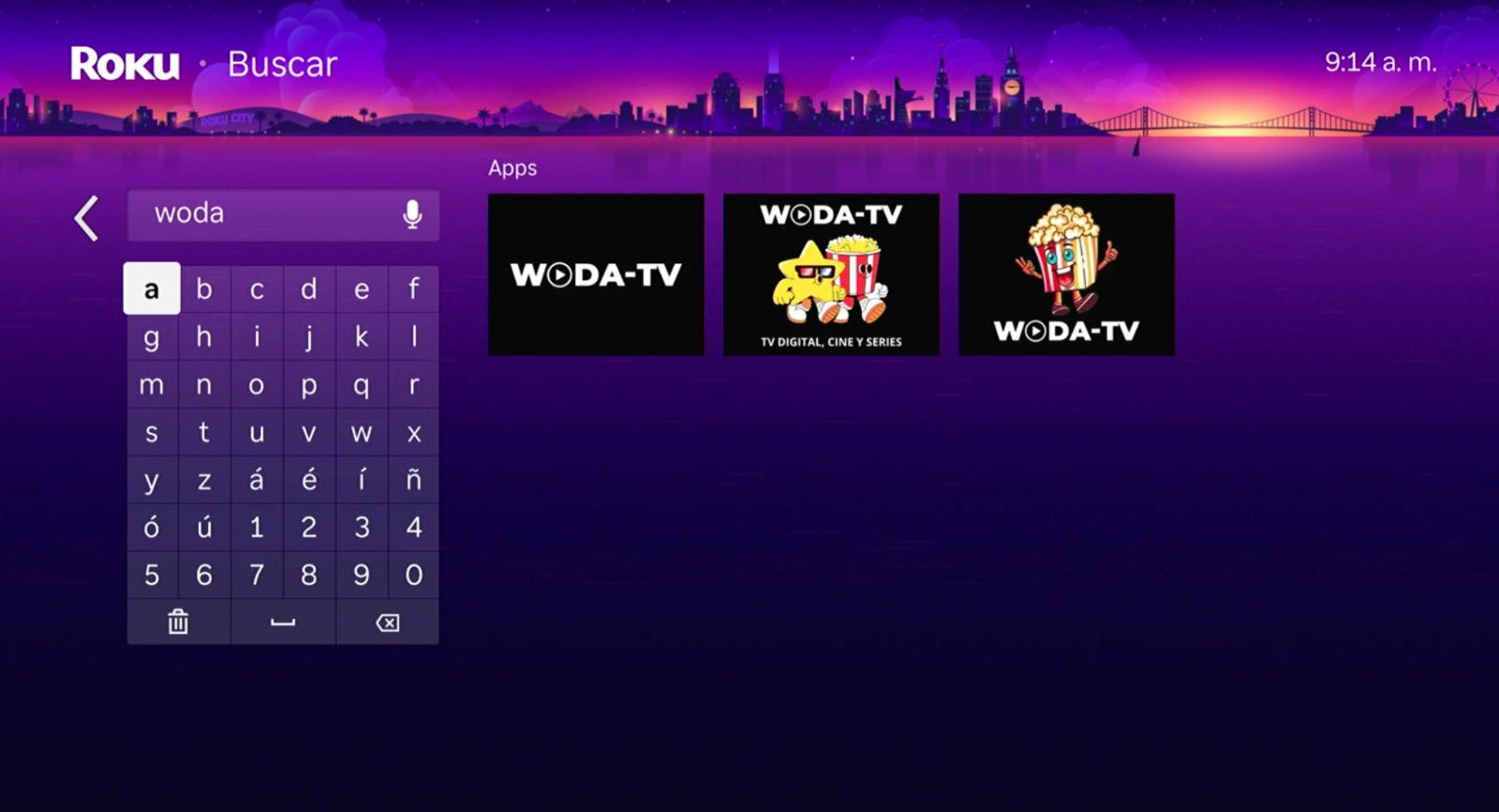
No computer, no cables, no odd codes: in your Roku search box type woda, pick the black channel with white letters and you are done. It takes about two minutes.
Three things, nothing more. If you already have them, go to the steps.
Everything happens on the TV itself, with the remote in your hand.
From the home screen, go down the left-hand menu to Search and press OK.
You do not need the full name or the hyphen: those four letters are enough for the results to appear on the right-hand side of the screen.
Several similar ones show up. The one to install is the one with a black background and the name WODA-TV in white letters, with no drawings. It is the newest one and the only one with support.
Press OK on it and then Add channel. The download is free: it will not ask you to pay anything.
When the install is done, press Go to channel. It also stays on your home screen, at the end of the list.
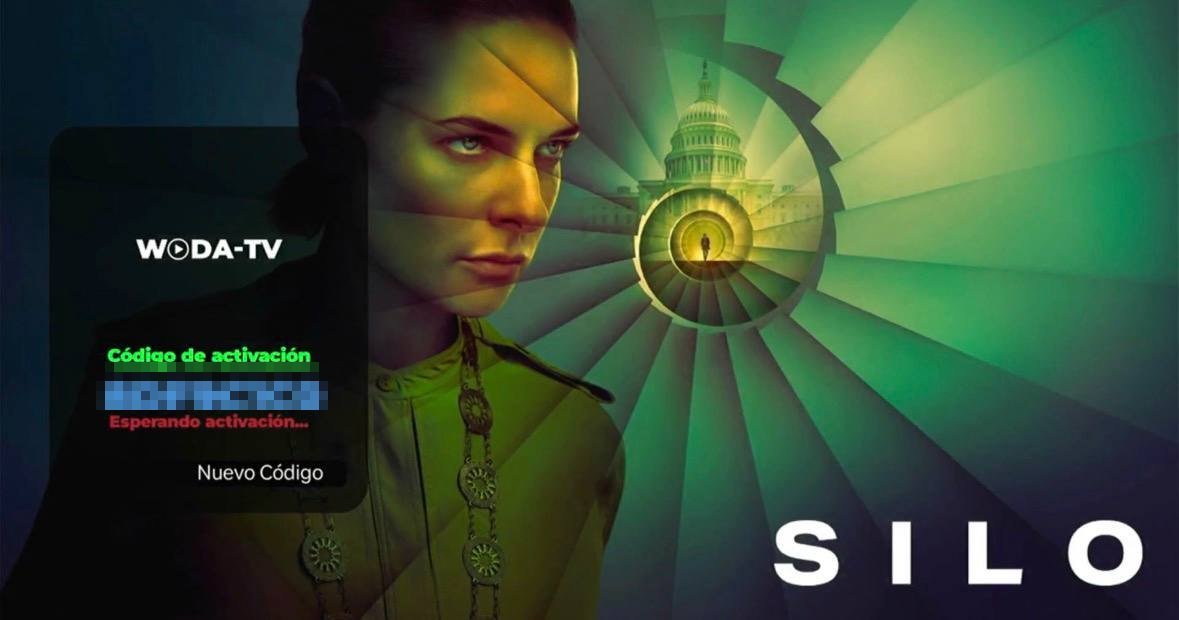
Type the details your provider gave you and confirm. The app remembers them: next time it opens straight in.
The app asks for your details only once. After that it opens straight onto your home screen.
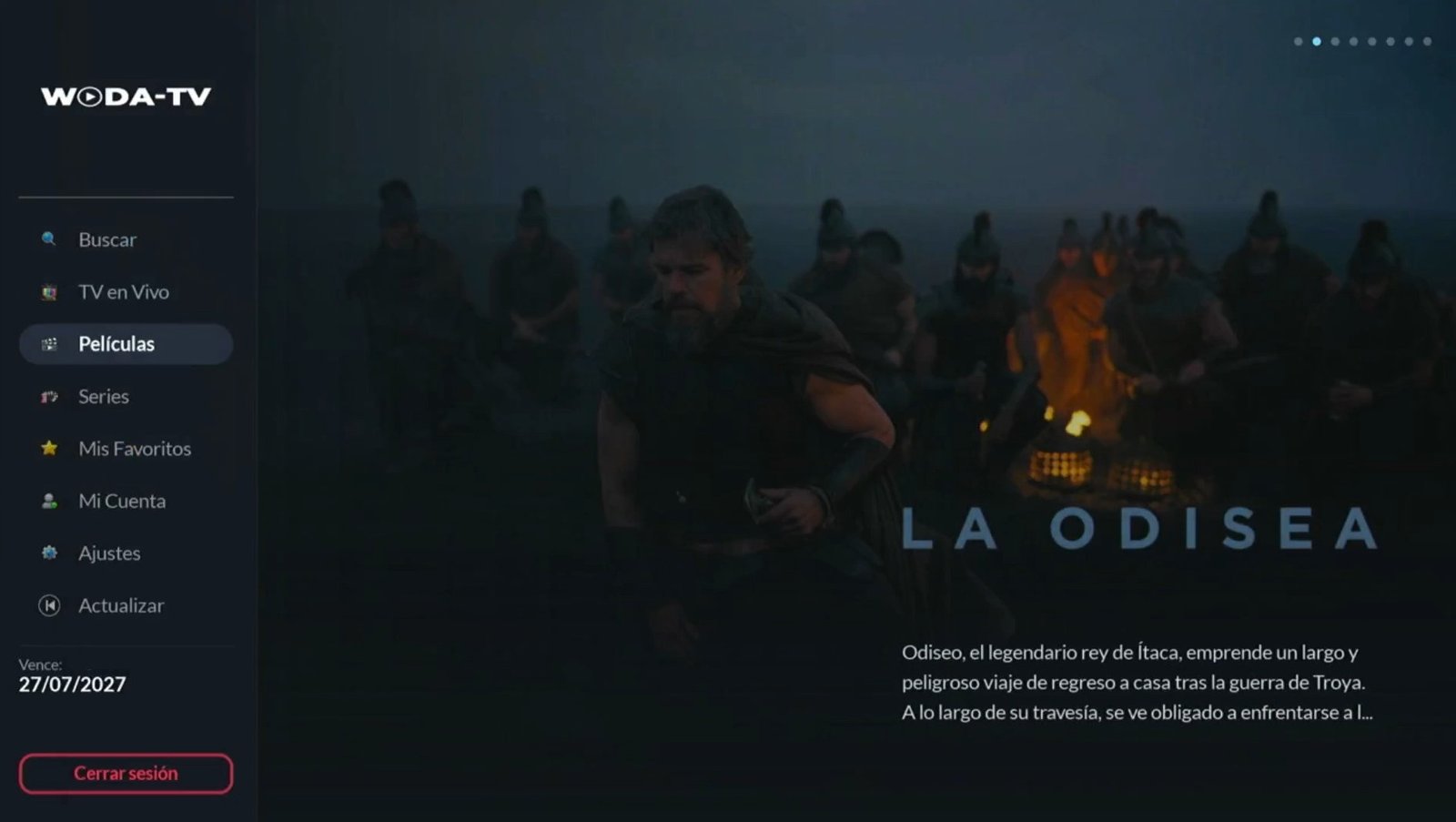
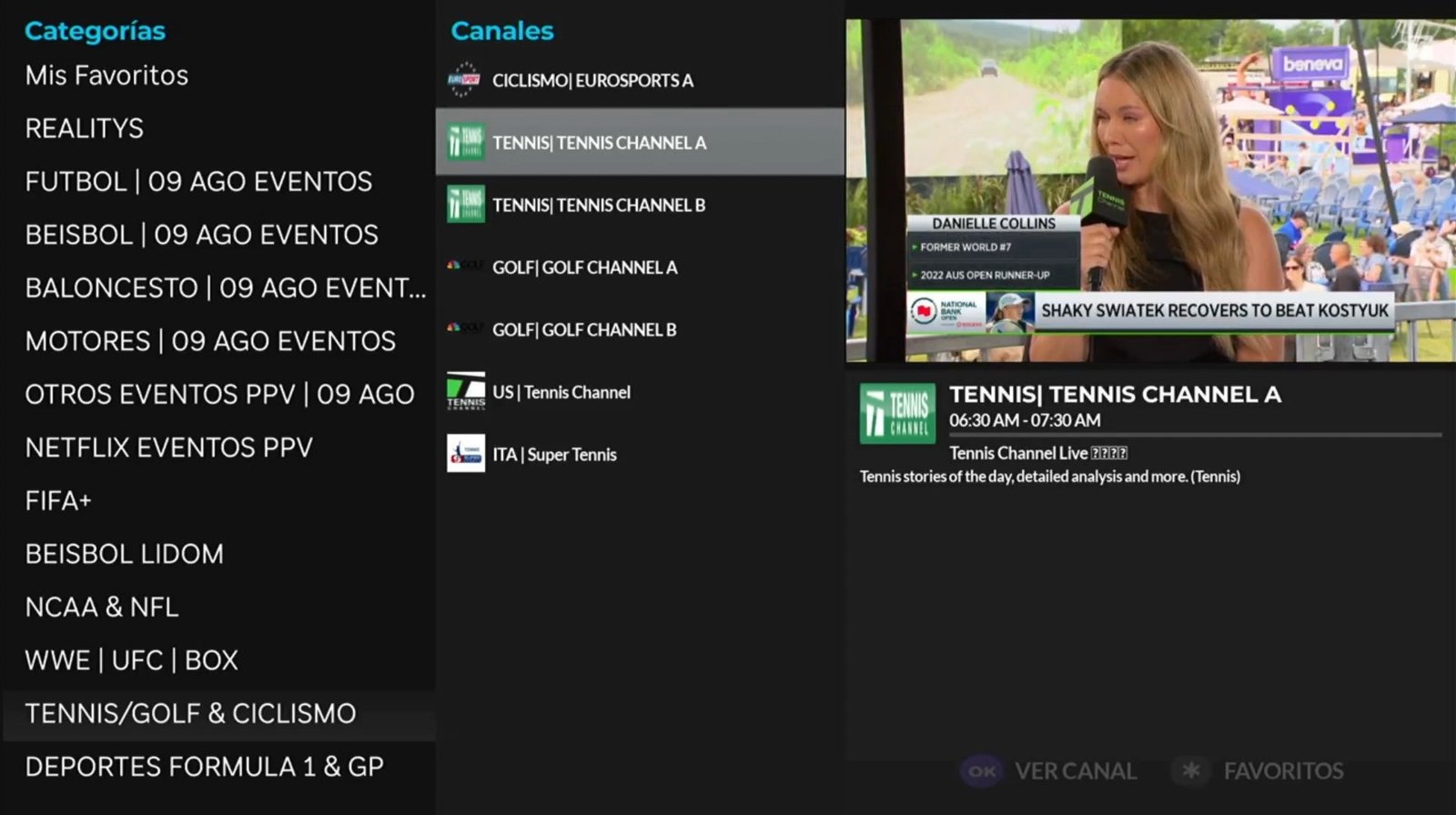
Everything you will find inside, once you sign in with your account.
Channels by category and a programme guide with times and descriptions. You get a preview while you browse the list, and full screen with one button.
With poster, plot, genre, director, running time, rating and cast with photos. Series are sorted by season and episode.
It searches the whole catalogue, not just the folder you have open. And accents do not matter: type «raiz» and «Raíz» shows up.
The app remembers where you were in every movie or episode, and you can keep your favourite channels and titles within reach.
If a channel freezes, the app notices and tunes back in on its own. If the channel is still down, it tells you with a clear message.
Switch the app language from settings whenever you want. Texts and dates adapt on their own.
Real screenshots of the app running, no mock-ups.
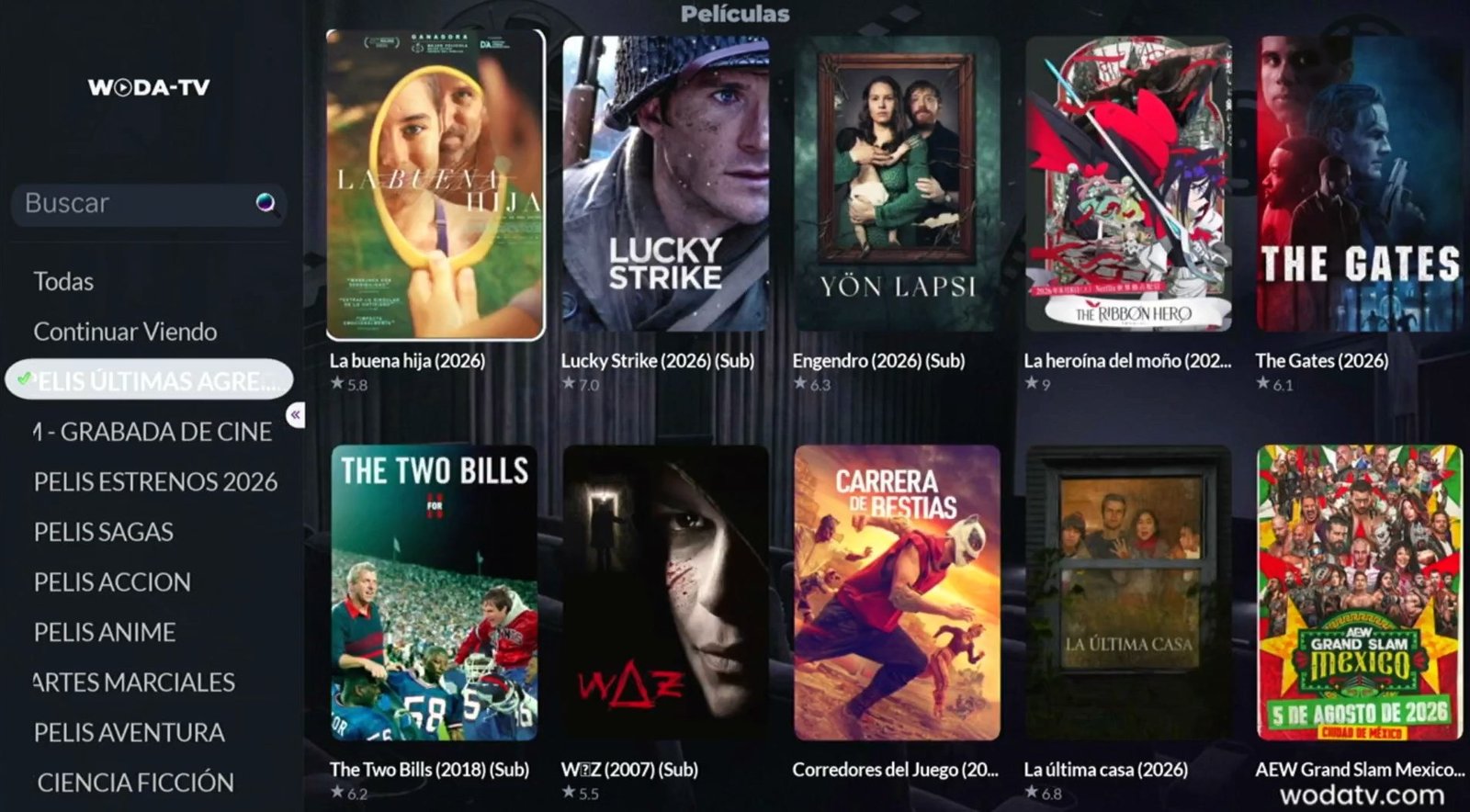
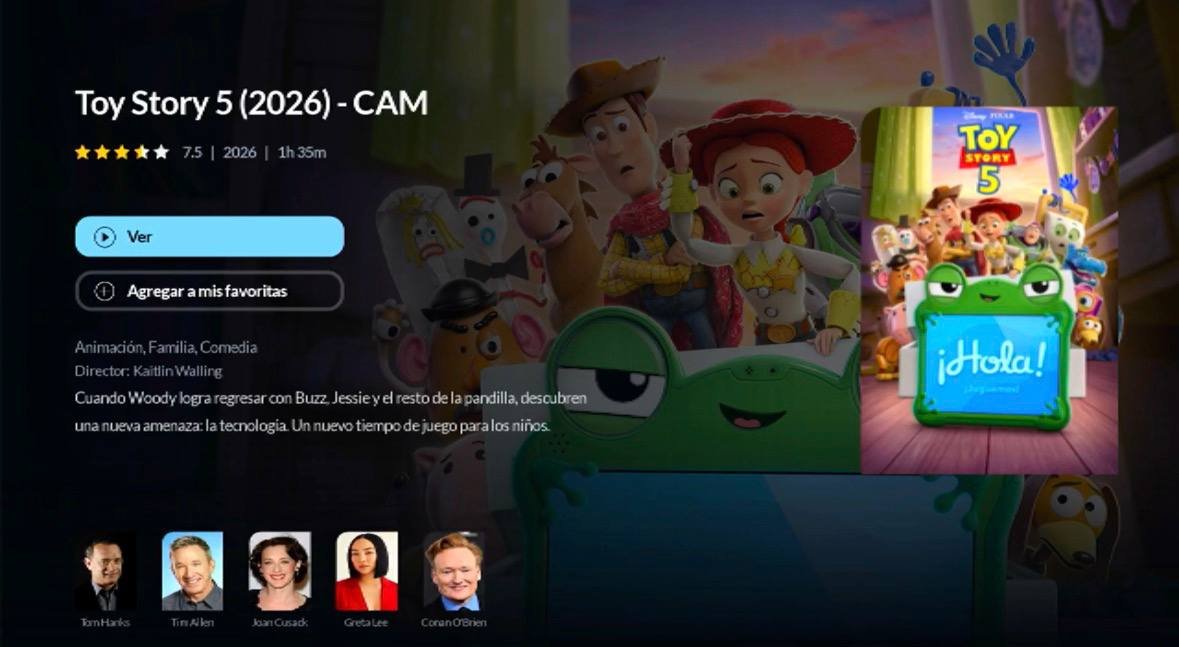
A tour of the app in under two minutes.
The questions we get most, answered.
Type just “woda”, without the hyphen or the rest of the name. If your Roku has been on for a long time, unplug it for a few seconds and try again: the store refreshes its list on start-up. If it still does not show up, message us on WhatsApp.
The one with the black background and WODA-TV in white letters, with no drawings. It is the newest version and the only one with support. The others are older versions that are no longer updated.
It is almost always upper/lower case or an extra space at the end. Type them slowly and without autocomplete. If you are sure they are right, your account may have expired: your service provider can check that.
The app retries by itself for a few seconds. If it stays the same, try another channel: if the rest work, the problem is that one channel, not your installation. If they all fail, check your internet connection.
Use the app search instead of going folder by folder: it searches the whole catalogue and works whether or not you type accents. If it is still not there, that title is not included in your plan.
That depends on the plan you signed up for, not on the app. Check with your service provider.
Both are on the app home screen: the language in settings, and the sign-out button in plain sight, no hidden menus.
Message us on WhatsApp telling us which step you got stuck on and we will sort it out with you.
WhatsApp support