
For computers with Windows 10 and 11. Download the installer, open it and follow the wizard. It takes under two minutes.
Three things, nothing more. If you already have them, go to the steps.
It is a normal Windows install: download, open and next.
Press the button and save the file. It usually lands in your Downloads folder.
It is called WODA-TV-WINDOWS-NEXT.exe. Double-click it; if your browser shows it along the bottom, just click it there.
That is the normal warning Windows shows for recently published programs, not an error. Press More info and then Run anyway.
Press Next through to Install, and Finish when it is done. The app ends up in the Start menu and on the desktop. Open it and fill in the ADD PLAYLIST screen: every box is explained right below.
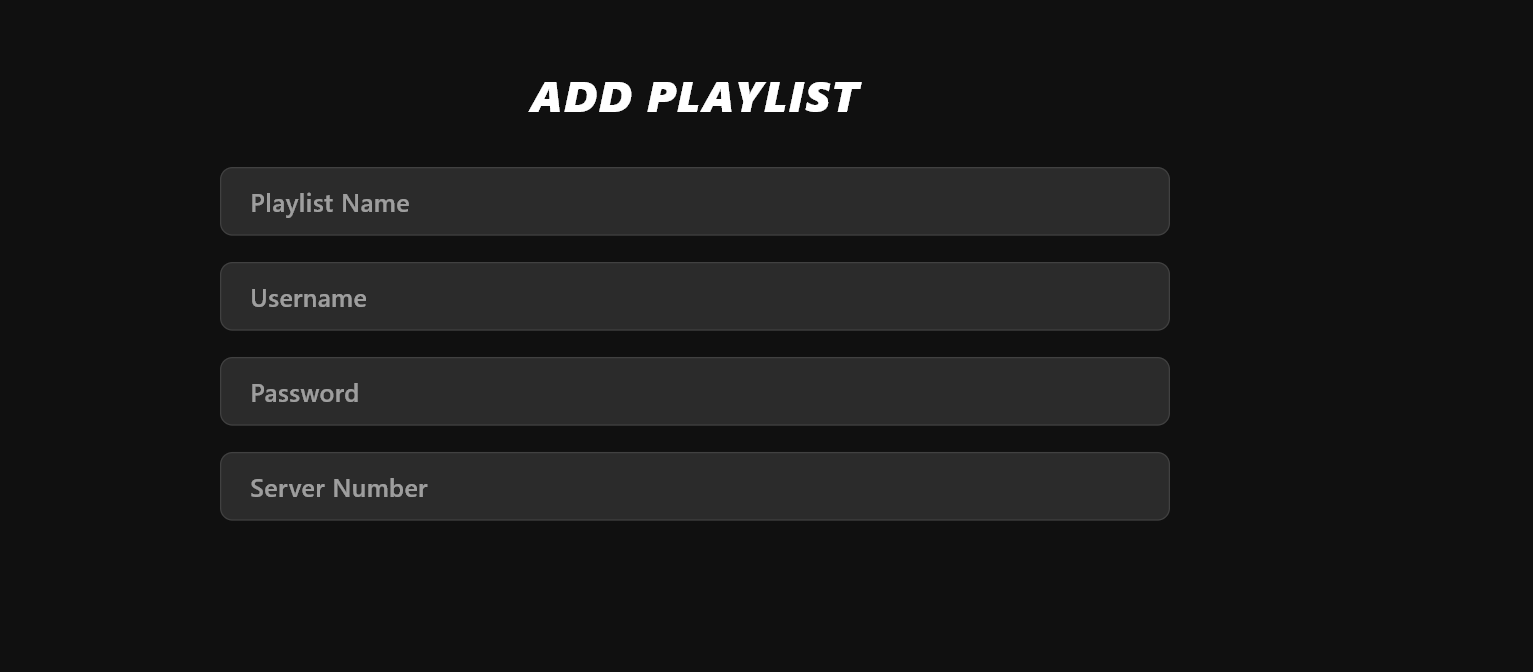
When you open the app you get a screen titled ADD PLAYLIST with four boxes. Fill them in like this, top to bottom, just as in the picture.
✅ Confirm and that is it: you can start enjoying the service.
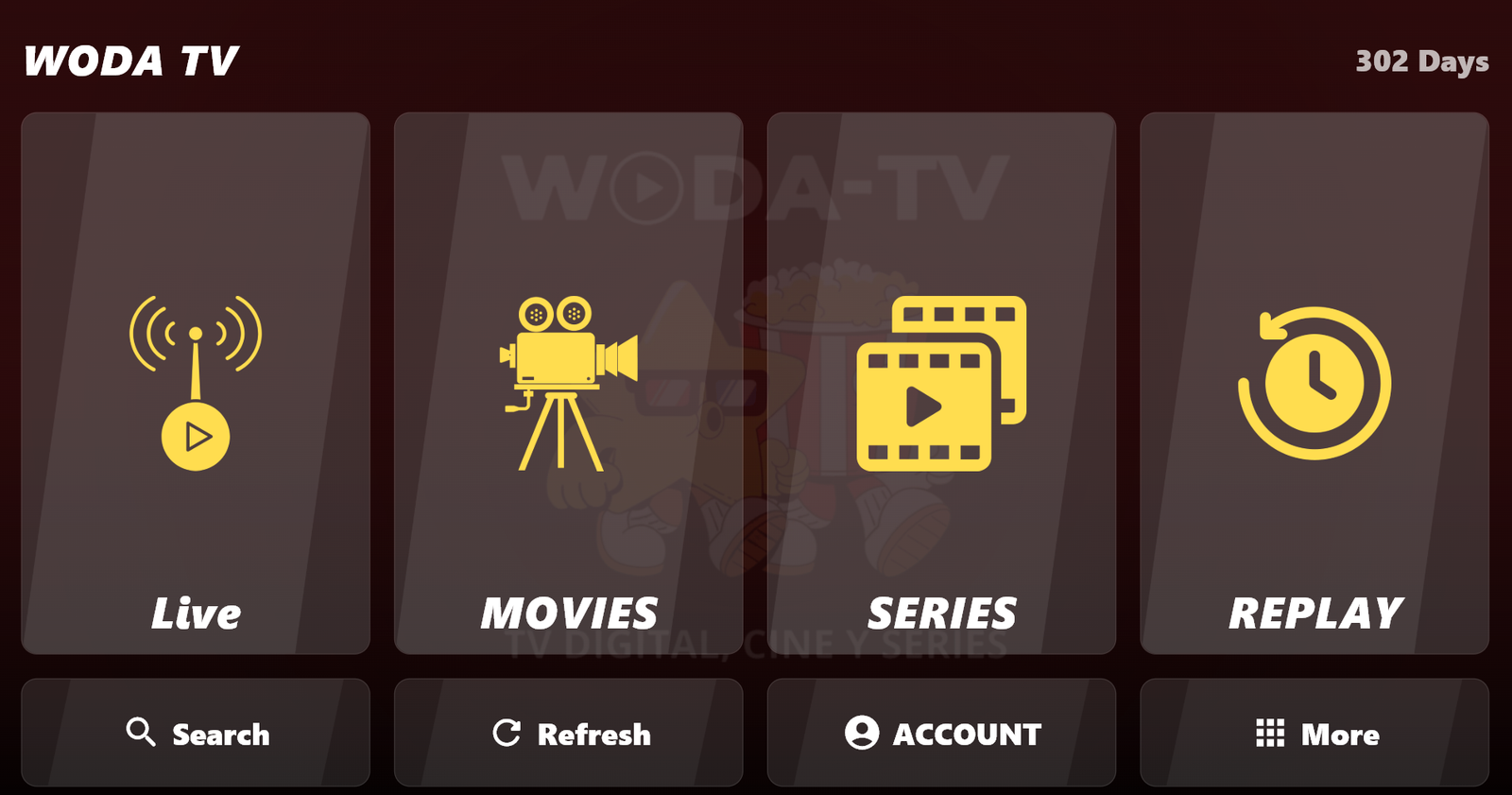
Everything you will find inside, once you sign in with your account.
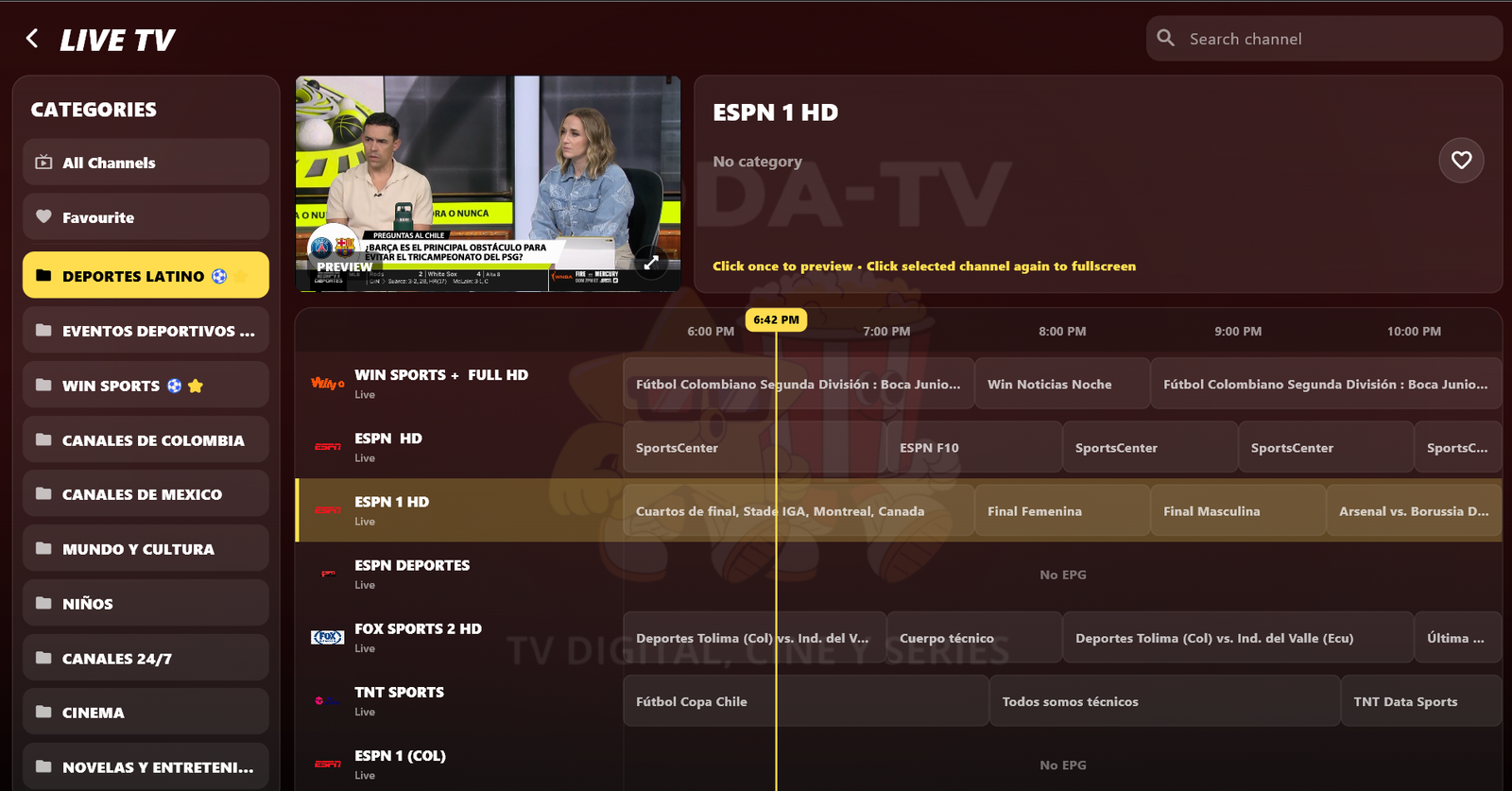
Channels by category and a programme guide with times and descriptions. You get a preview while you browse the list, and full screen with one click.
With poster, plot, genre, director, running time, rating and cast with photos. Series are sorted by season and episode.
It searches the whole catalogue, not just the folder you have open. And accents do not matter: type «raiz» and «Raíz» shows up.
The app remembers where you were in every movie or episode, and you can keep your favourite channels and titles within reach.
If a channel freezes, the app notices and tunes back in on its own. If the channel is still down, it tells you with a clear message.
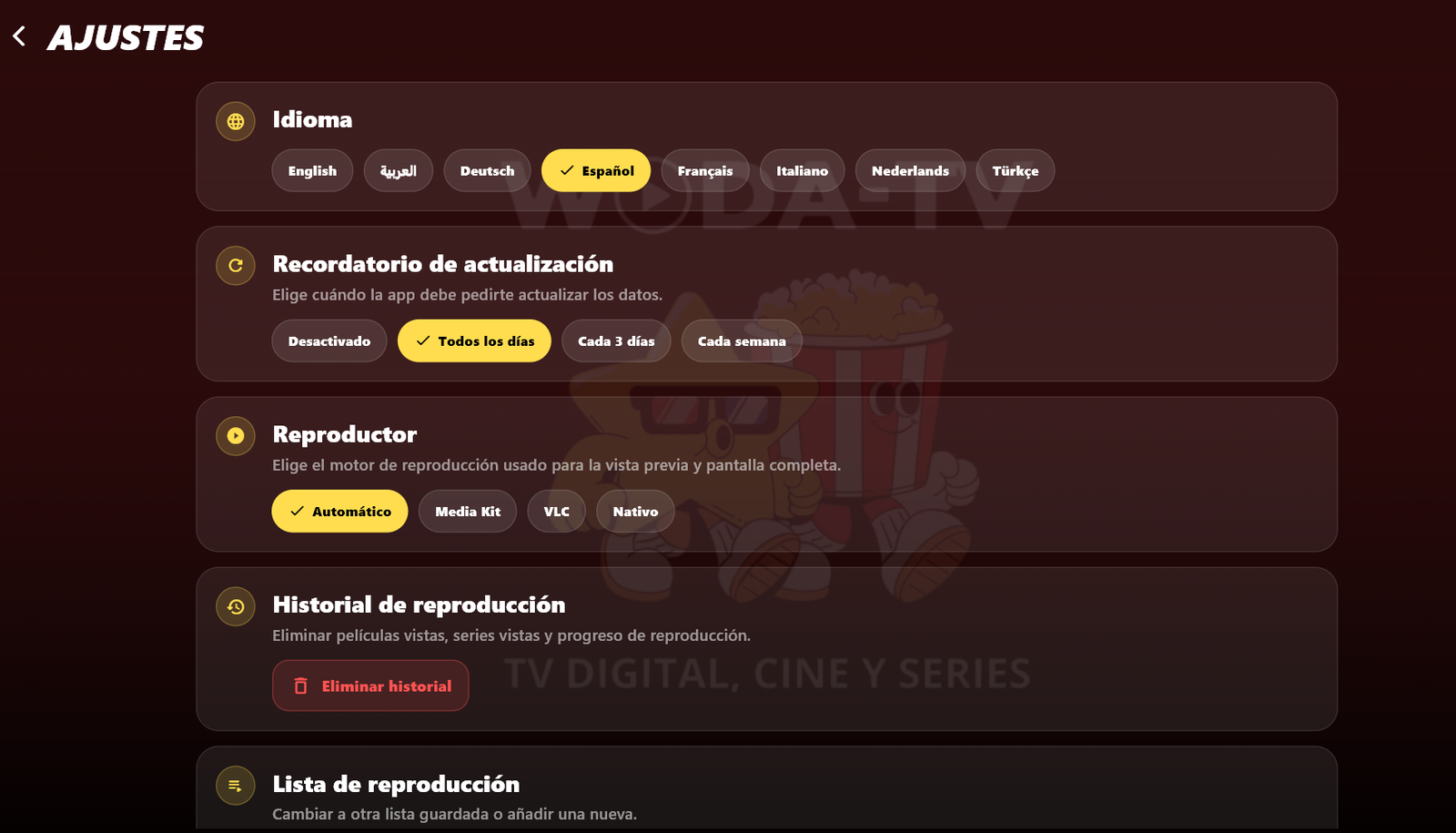
Switch the app language from settings whenever you want. Texts and dates adapt on their own.
Real screenshots of the app running, no mock-ups.
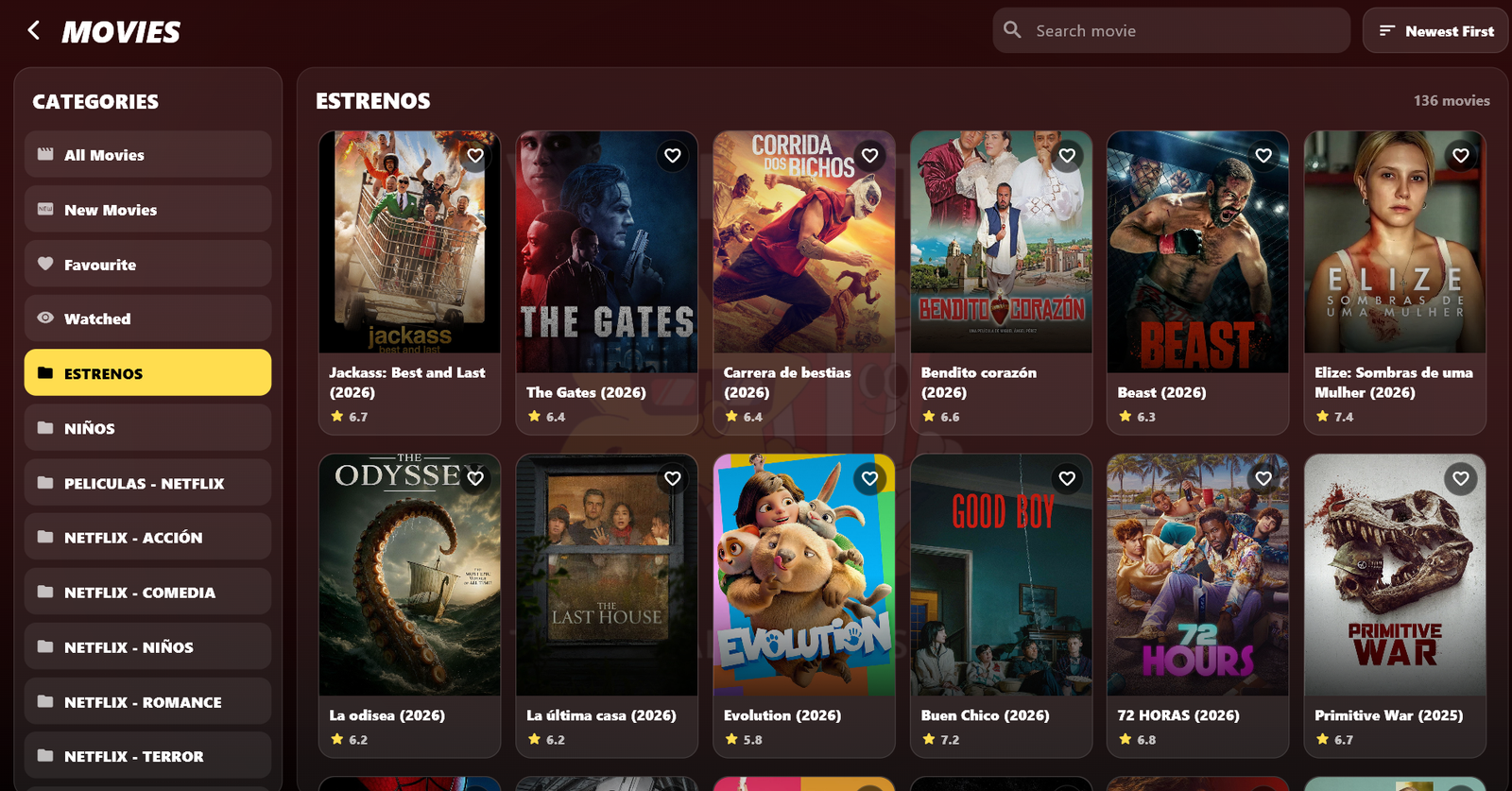
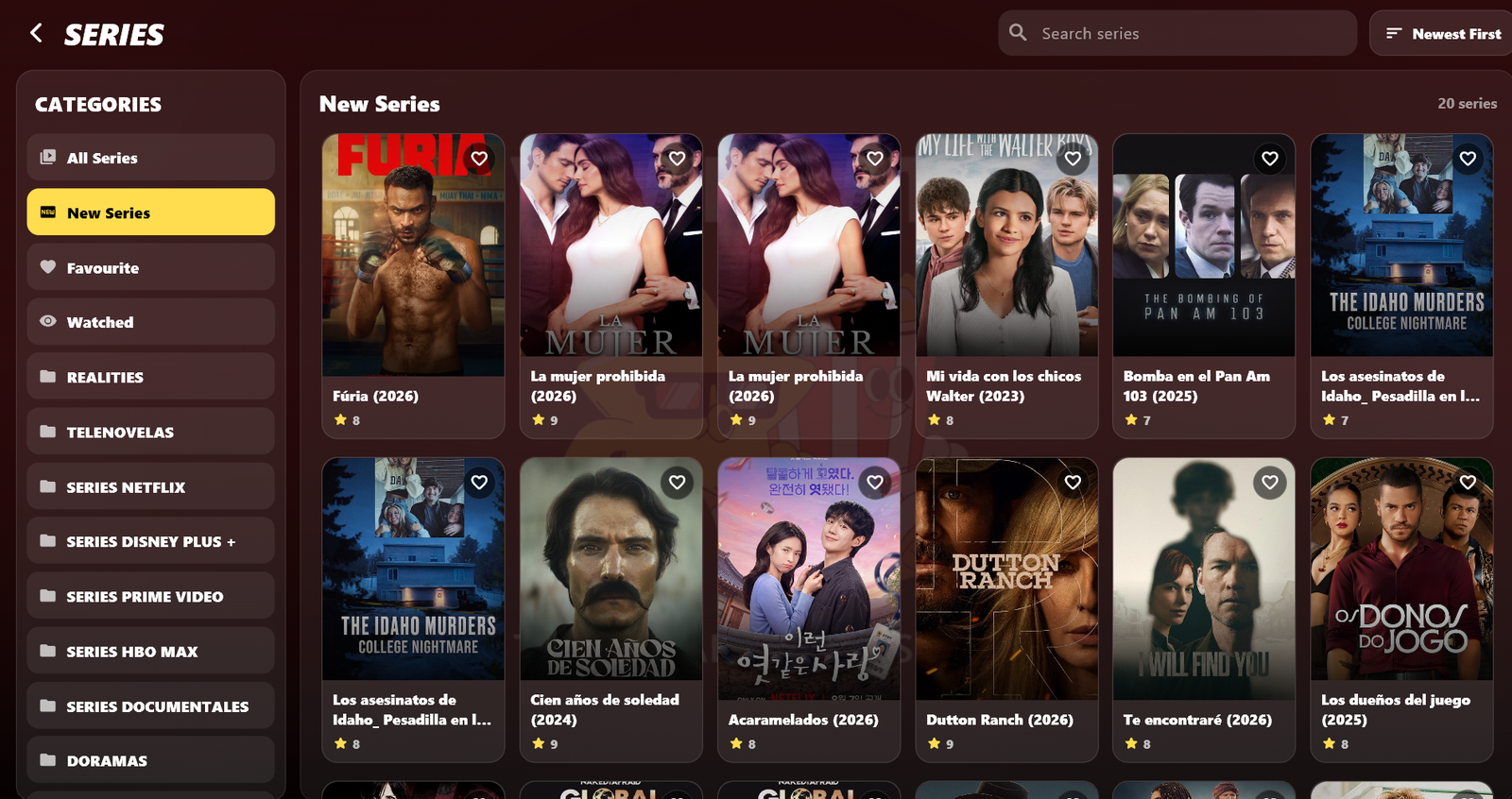
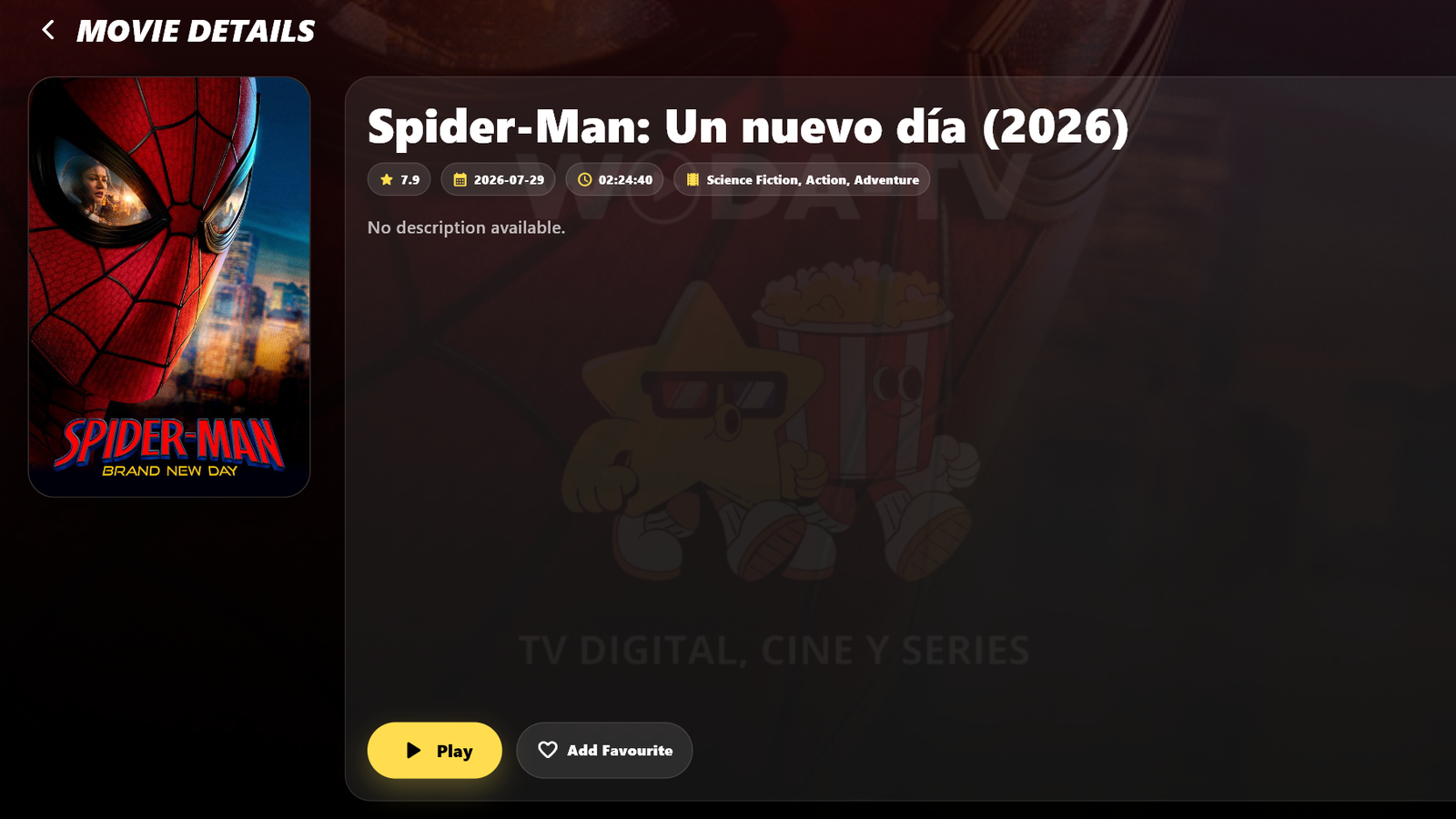
A tour of the app in under two minutes.
The questions we get most, answered.
That is the SmartScreen warning, normal for recently published programs. Press “More info” and then “Run anyway”. It is not a virus, nor a broken download.
It is called WODA-TV-WINDOWS-NEXT.exe. Open File Explorer and go to the “Downloads” folder. You can also press Ctrl+J in your browser to see recent downloads.
In Playlist Name type WODATV, and in Server Number type 801. They are the same for every customer. The only details that are yours are the username and the password.
Check that Server Number is 801 and that the username and password have no extra spaces at the start or the end, which is what usually happens when copying and pasting. The first load can take a few seconds.
It is almost always upper/lower case or an extra space at the end. Type them slowly and without autocomplete. If you are sure they are right, your account may have expired: your service provider can check that.
The app retries by itself for a few seconds. If it stays the same, try another channel: if the rest work, the problem is that one channel, not your installation. If they all fail, check your internet connection.
Use the app search instead of going folder by folder: it searches the whole catalogue and works whether or not you type accents. If it is still not there, that title is not included in your plan.
Download the installer again from this same page and install over the top. You will not lose your session or your favourites.
Download the installer and, if you get stuck on a step, message us on WhatsApp.
Download installerWODA-TV-WINDOWS-NEXT.exe · about 47 MB · Windows 10 and 11