
It installs from the TV itself with the Downloader app and a code, in about five minutes. With a video guide for Fire TV and one for Google TV.
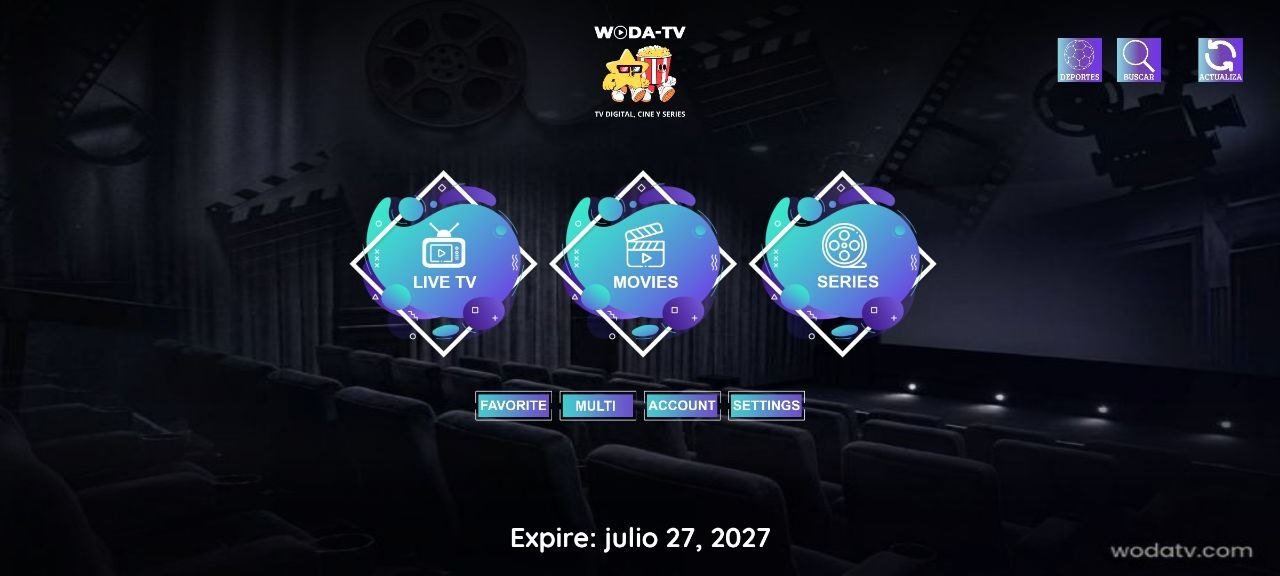
Have this ready and the steps go through in one go.
The first two steps depend on your device: find yours below. From step 3 onwards it is the same on all of them.
From the Amazon Appstore. Search for Downloader, the orange icon. Several apps share that name, so check the developer before installing:
✔ Developer: AFTVnewsIf it says any other name, that is not the one. It is free.
Usually under Settings → My Fire TV → Developer options → Install unknown apps, where you turn on Downloader. Some names change with the model: the video shows exactly where.
Video: Downloader on Fire TV, start to finish.
From Google Play. Search for Downloader, the orange icon. Several apps share that name, so check the developer before installing:
✔ Developer: AFTVnewsIf it says any other name, that is not the one. It is free.
Usually under Settings → Apps → Security & restrictions → Unknown sources, where you turn on Downloader. Some names change with the TV brand: the video shows exactly where.
Video: Downloader on Google TV, start to finish.
And from here on, the same on all of them
On the Home tab, in the address box, type the code of the app you are installing:
 WODA TV XC Clásica
The most stable and the easiest to use, especially for live TV. This is the one we suggest for everyday use. It also works on Android phones and tablets.
 WODA TV Smarters Clásica
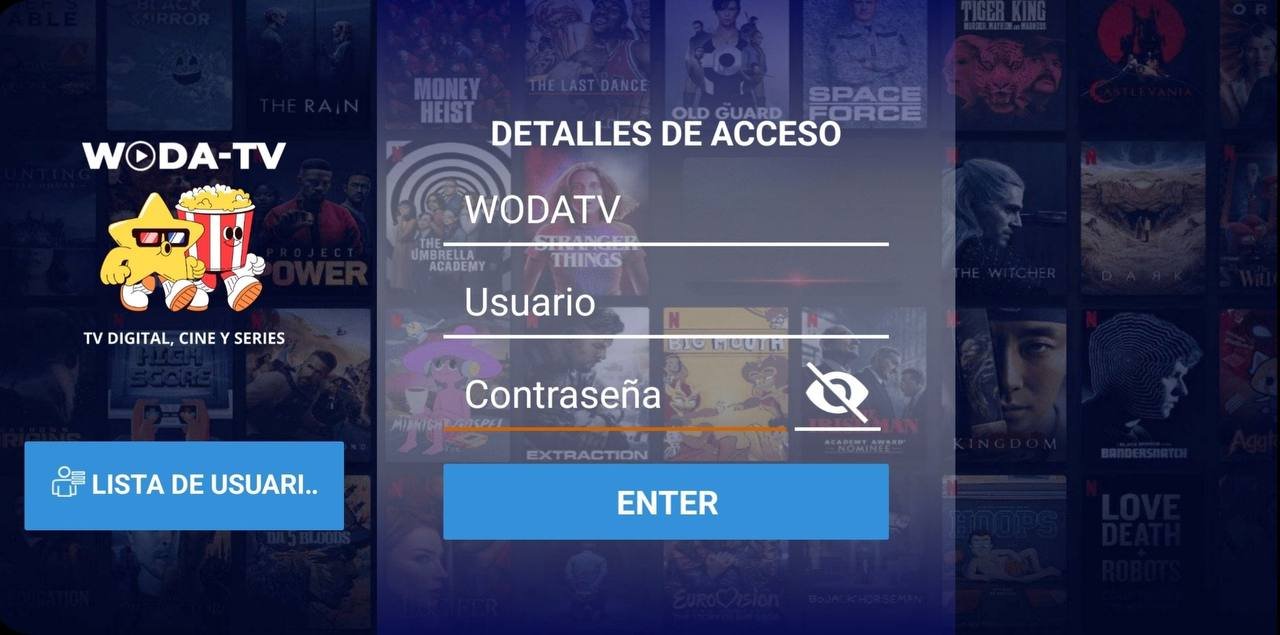
The twin of the Clásica, and the other one we suggest keeping. Very comfortable for live TV. When you sign in it asks for a name, which is WODATV, and then your username and password. It has a few settings you leave done the first time (step 9). It also works on Android phones and tablets.
 WODA TV GLASS
A striking home screen, with large detail pages and the latest movies and series right there. Live TV is very comfortable to handle here. It also works on Android phones and tablets.
 WODA TV TiVi Mate
A striking home screen, with a horizontal channel grid and a live preview, and several playlists in the same app. Built for the remote control, SKY style, for moving around live television. Recommended for television screens only.
💡 You can install them all and use each one for what it does best, or keep only the ones you like. They install the same way, one after the other. If a movie or series will not play in one of them, always try WODA TV XC Clásica or WODA TV Smarters Clásica, the two we recommend most.
You will see a progress bar. The file is small, so it only takes a few seconds.
When the download finishes a window appears: choose Install and then Done. Downloader then offers to delete the downloaded file: accept (Delete twice) so it does not take up space.
A prompt asks you to allow photos and media: press Allow. ⚠️ If you deny it, the app will not load the posters and you will not be able to use the service.
You will find it among your apps. Type your username and password once and next time it opens straight in. If the one you opened is WODA TV GLASS, it will not ask for a username or password: go to step 8. And if it is WODA TV Smarters Clásica, before the username it asks for a Name: type WODATV there and carry on at step 9. And if it is WODA TV TiVi Mate, once inside have a look at the tips in step 10.
The first time it opens it shows a code and a QR code on the TV screen. There are two ways to activate it, and either one is done once:
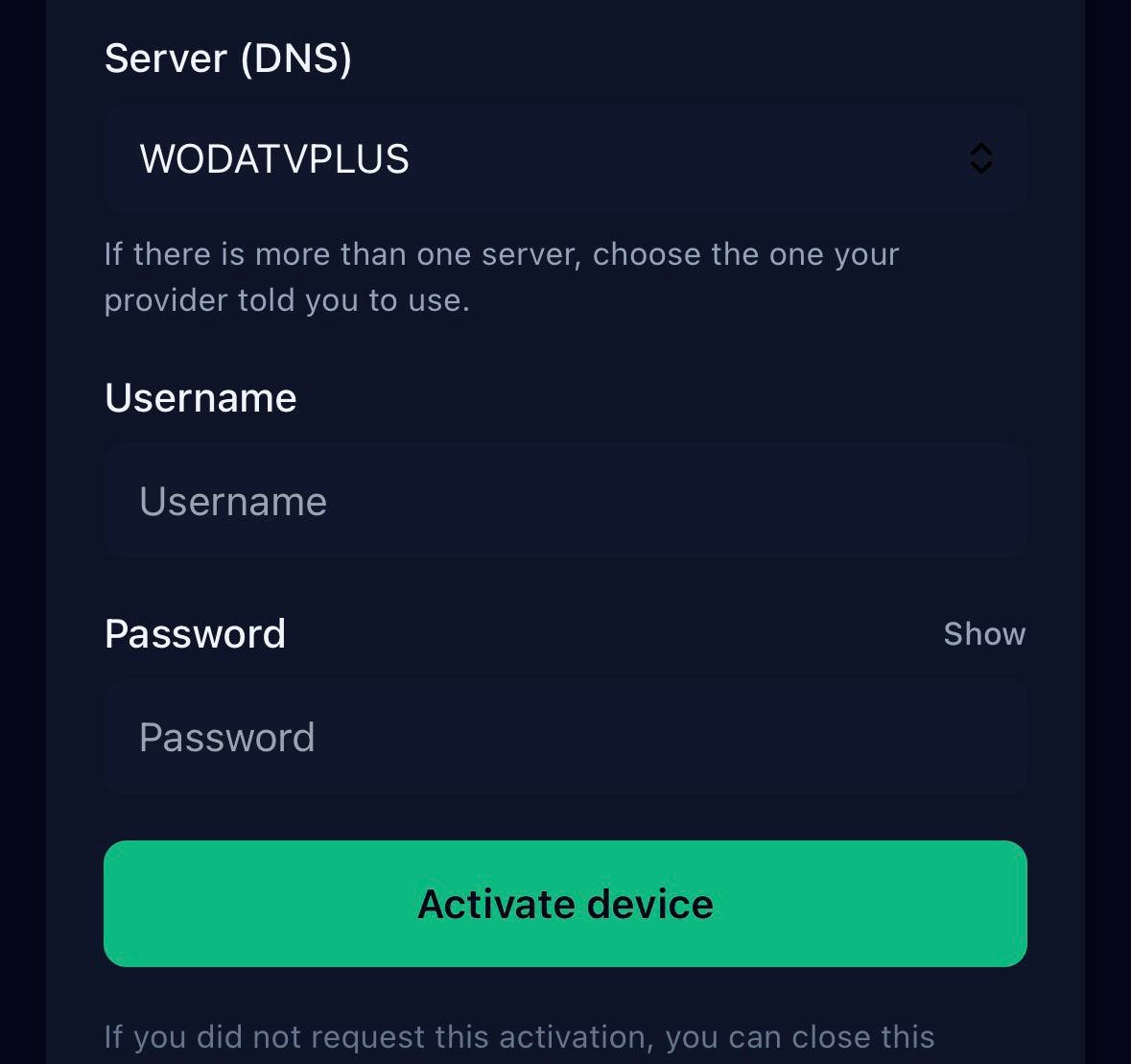
Write down the code on the screen exactly as it appears and send it to us on WhatsApp: we activate the app within a few minutes and you only have to open it again.
Send my code on WhatsAppOnce it is activated, these tips set it up your way:
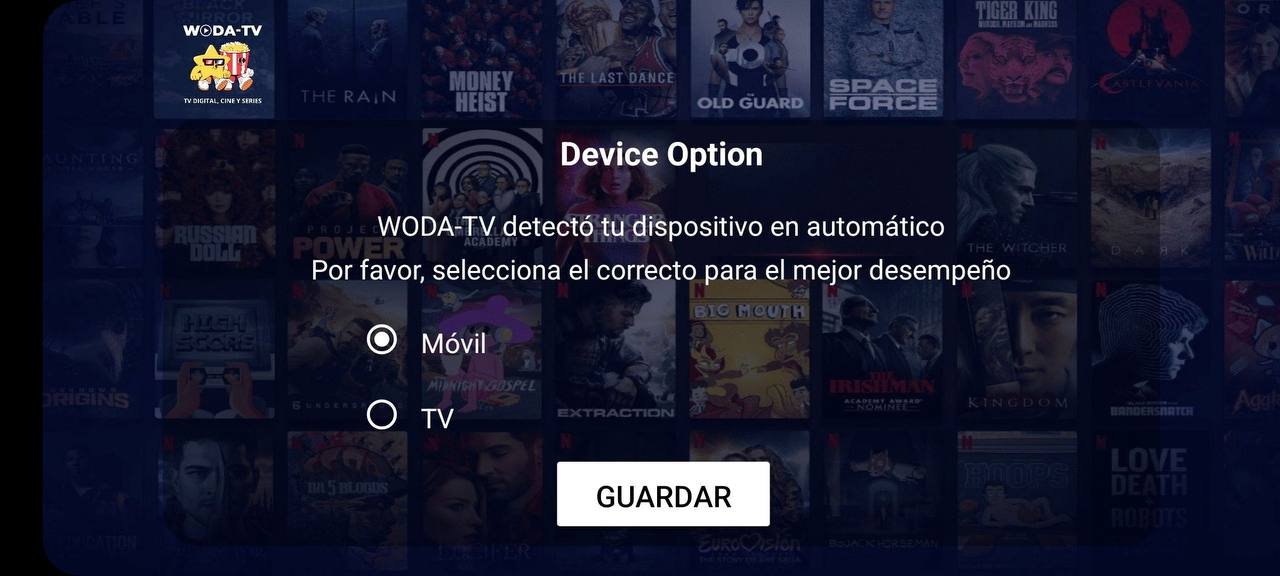
On the sign-in screen, in the first field (Name) type WODATV, and below it your username and your password. If it asks what kind of device you are on (Device Option), choose TV and save. Once inside, these are the tips we recommend:
Seven tricks that are not obvious at first glance and make the app far more comfortable with the remote. The first one matters most: do it right after installing.
Go back to Downloader and repeat steps 3 to 7 with the other codes. The permissions are already granted, so it goes much faster. You end up with all four on the TV and use whichever suits you at the time.
The app asks for your details only once. After that it opens straight onto your catalogue.
Everything you will find inside, once you sign in with your account.
Channels by category and a programme guide with times and descriptions. You get a preview while you browse the list, and full screen with one button.
With poster, plot, genre, director, running time, rating and cast with photos. Series are sorted by season and episode.
It searches the whole catalogue, not just the folder you have open. And accents do not matter: type «raiz» and «Raíz» shows up.
The app remembers where you were in every movie or episode, and you can keep your favourite channels and titles within reach.
If a channel freezes, the app notices and tunes back in on its own. If the channel is still down, it tells you with a clear message.
Switch the app language from settings whenever you want. Texts and dates adapt on their own.
Real screenshots of all four apps, so you can compare before choosing.
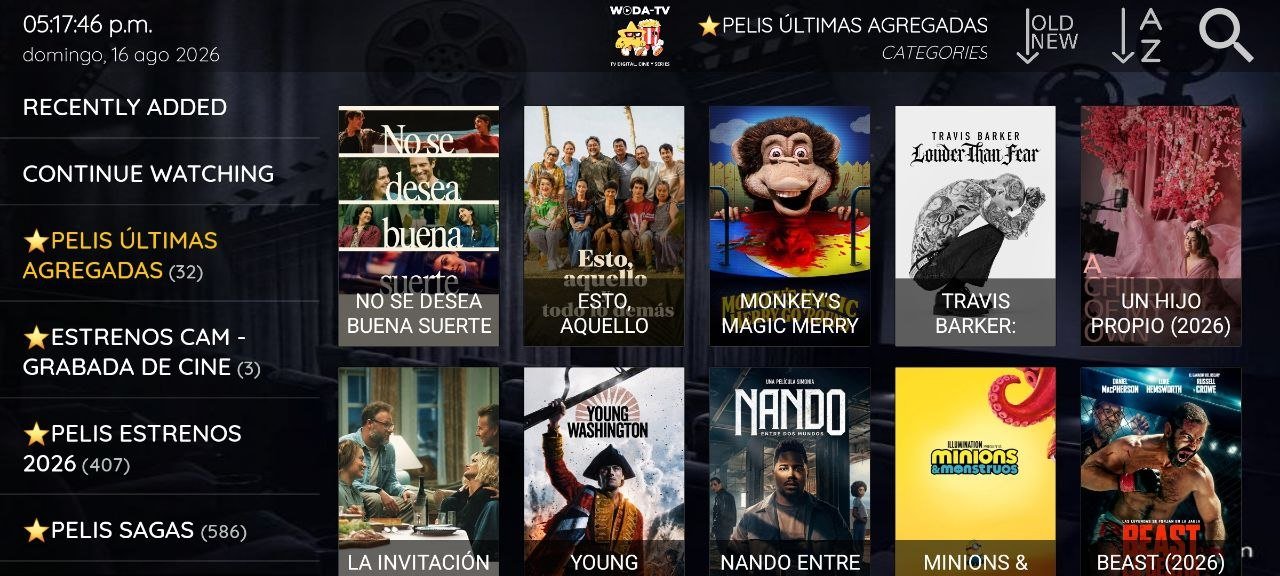
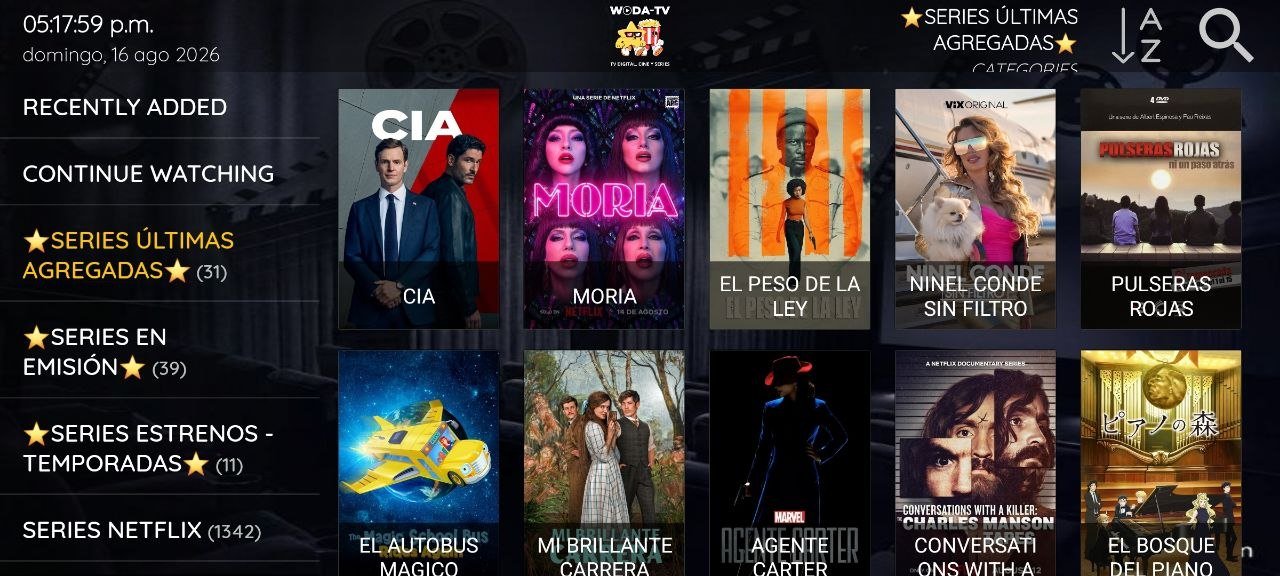
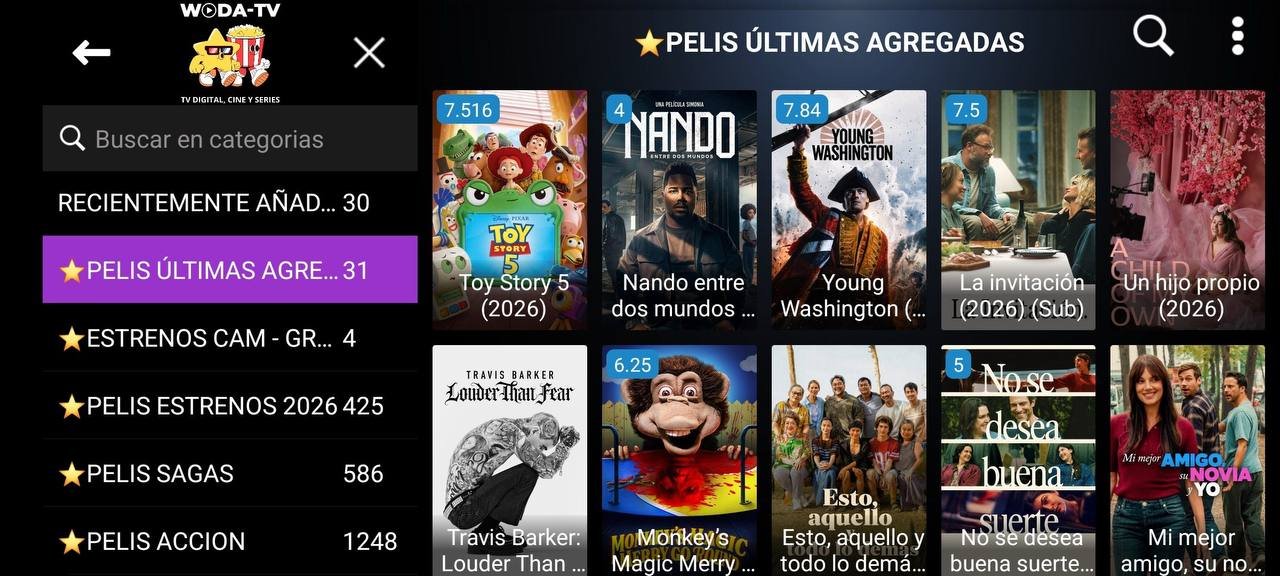
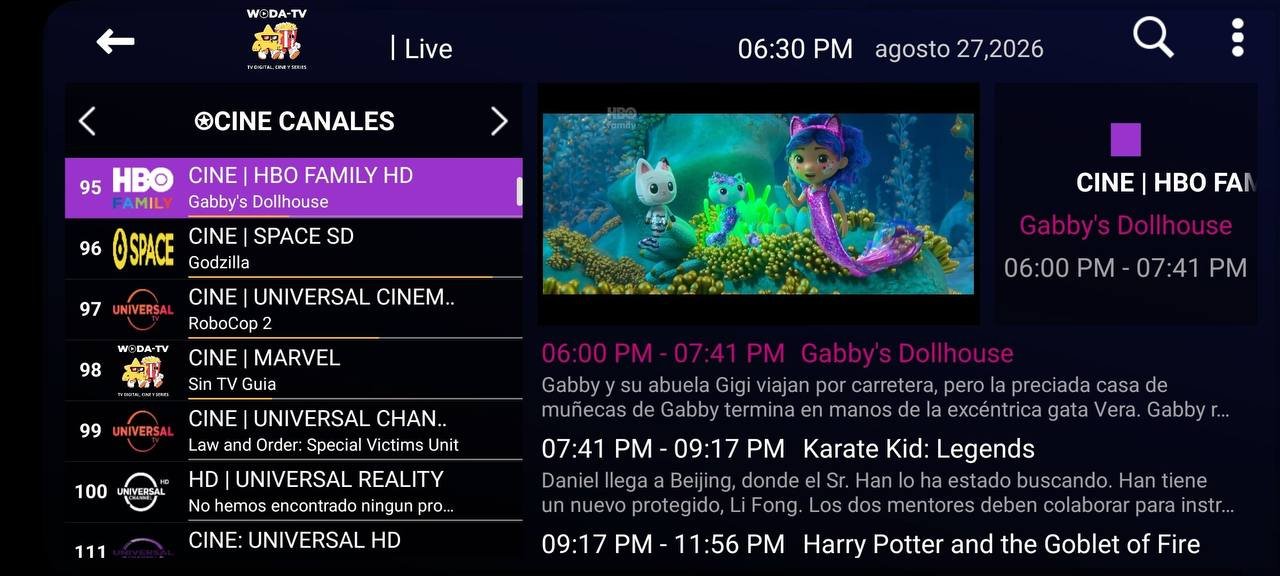
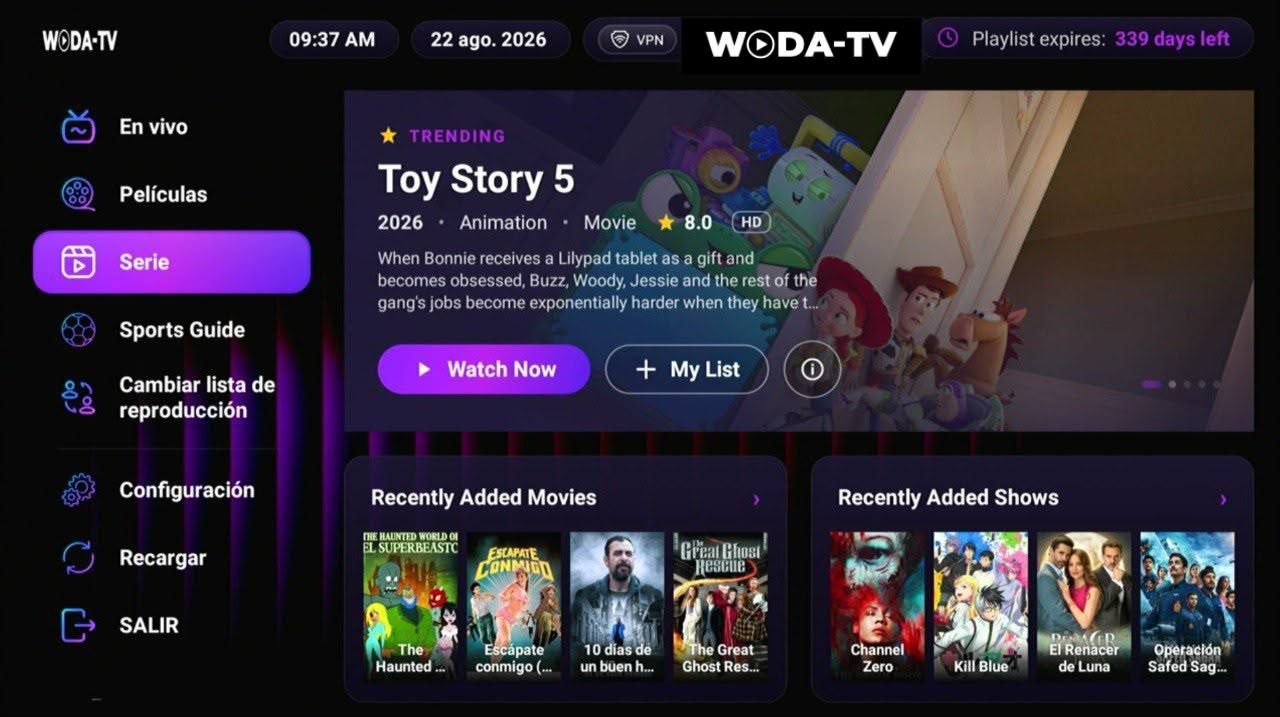
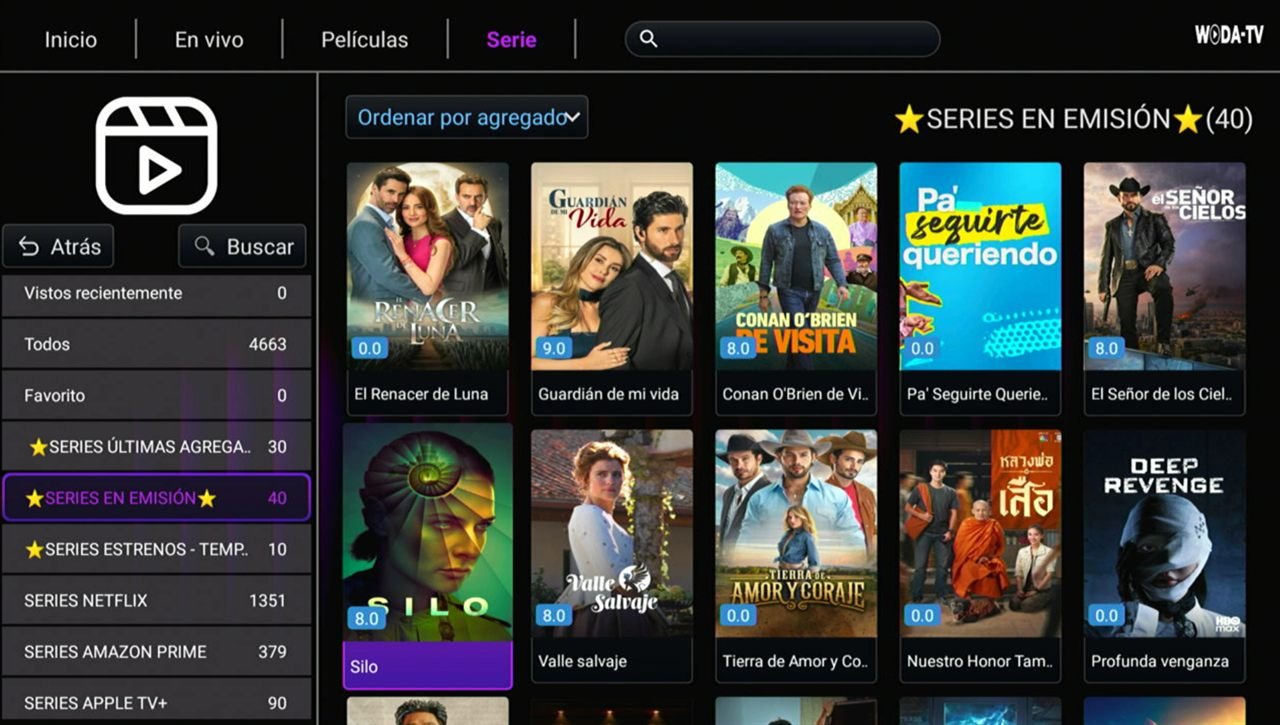
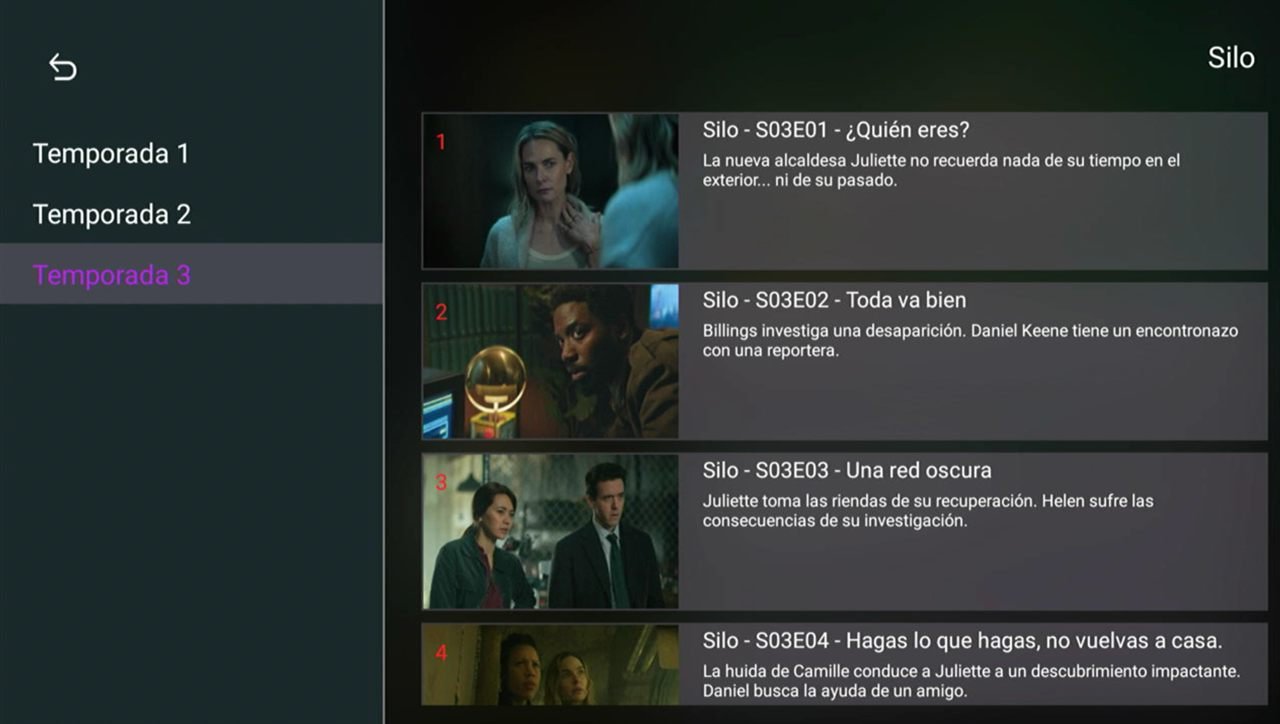
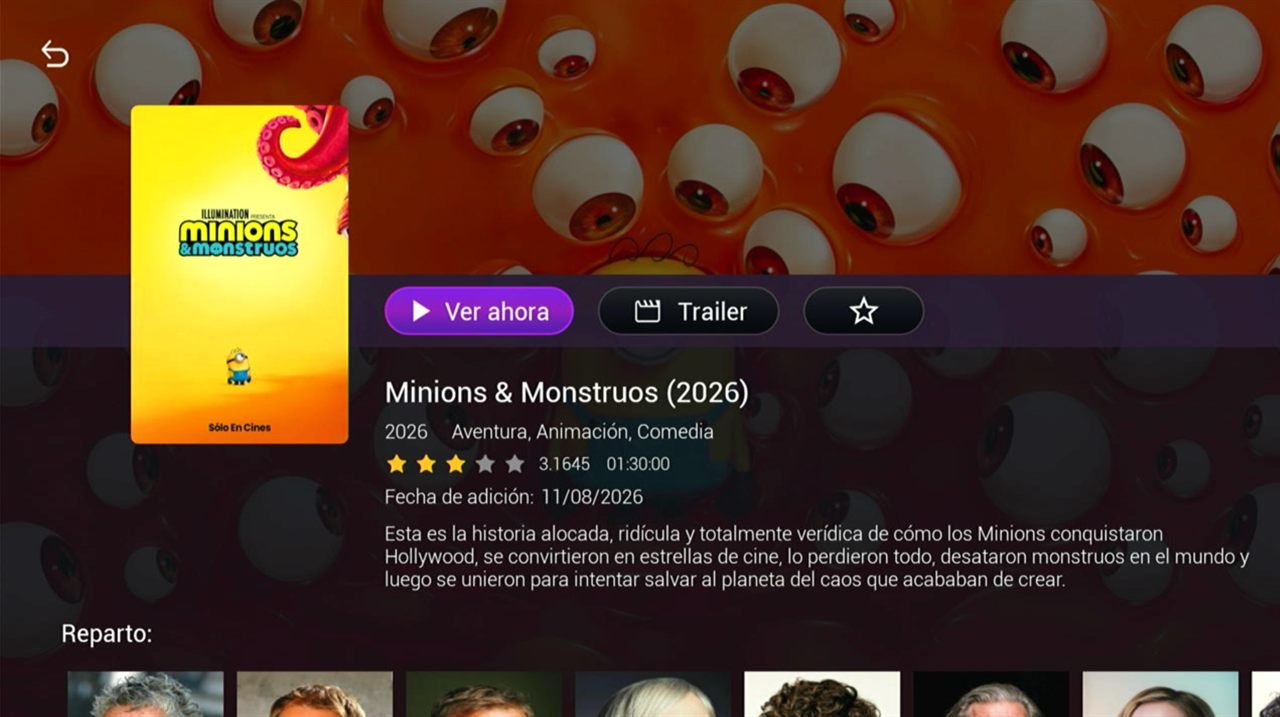


A tour of WODA TV TiVi Mate, so you can see how it handles with the remote control.
The questions we get most, answered.
That is the photos and media permission: it was denied during the install. Fix it in Settings → Apps → WODA-TV → Permissions, turning on Photos and media. Then close the app and open it again. If you cannot find it, message us and we will do it with you.
The one by AFTVnews, with the orange icon. In the store, the developer name appears right under the app name. The others share the name but do not work for this.
The step 2 permission — unknown sources — is missing. On Fire TV it is under Settings → My Fire TV → Developer options; on Google TV and Android TV, under Settings → Apps → Security & restrictions. Turn it on for Downloader, open Downloader again and repeat the download. The video for your device shows the whole path.
Check that you typed it with no spaces or extra characters: 3806444 for the XC Clásica, 7374820 for the Smarters Clásica, 6347786 for WODA TV GLASS and 3571048 for WODA TV TiVi Mate. If it still does not work, message us and we will confirm the code straight away.
The two we recommend most are WODA TV XC Clásica (code 3806444) and WODA TV Smarters Clásica (code 7374820): they are the most stable and the easiest to handle, they are good for live TV. The XC Clásica also finds titles whether or not you type the accents. WODA TV GLASS (code 6347786) is the best looking of them and is also very comfortable for live TV, but it needs us to activate it with a code. WODA TV TiVi Mate (code 3571048) uses a horizontal SKY-style grid, very comfortable with the remote for live television. Install as many as you like and use each for what it does best.
Type WODATV there, all one word and no spaces. It is the name of the playlist, not your username: your username goes in the field below, with your password. If that first field is wrong, the app will not find the catalogue even when the username and password are correct.
These settings are done once and they are all in step 9: set automation to 1 day, sort the ALL folder by most recent so the newest uploads show first, always search from that folder with the magnifier, and choose FIT PARENT as the aspect ratio while playing. For favourites, hold the select button on your remote for two seconds.
GLASS does not ask for a username and password on the TV like the others. The first time you open it, it shows a code and a QR code on screen, and it is activated in one of two ways: by you, scanning the QR with your phone and entering the server (DNS) we told you, your username and your password; or by us, if you send us the code on WhatsApp, within a few minutes. From then on it opens straight in every time. This is done once, not every day, and step 8 explains it.
The app does not notice on its own when we activate it: close it completely and open it again. If it still asks to be activated after reopening, send us the code you see on screen again, because on some devices it changes when the app restarts.
Amazon Fire TV devices, Google TV, TV Boxes and Android TV televisions all work. The only exception is Fire TV running Vega OS, Amazon's new system, which does not allow this install. If you are not sure which model you have, message us before you start and we will tell you.
It is almost always upper/lower case or an extra space at the end. Type them slowly and without autocomplete. If you are sure they are right, your account may have expired: your service provider can check that.
The app retries by itself for a few seconds. If it stays the same, try another channel: if the rest work, the problem is that one channel, not your installation. If they all fail, check your internet connection.
Use the app search instead of going folder by folder: it searches the whole catalogue and works whether or not you type accents. If it is still not there, that title is not included in your plan.
The same way you installed it: open Downloader, type the same code and install over the top. You will not lose your session or your favourites.
Message us on WhatsApp telling us which step you got stuck on and we will sort it out with you.
WhatsApp support