
To take your service wherever you go. The easiest way is NEXT+, which comes from Google Play like any other app. And if you would rather watch in landscape, with the phone sideways, there are two alternatives that download right here.
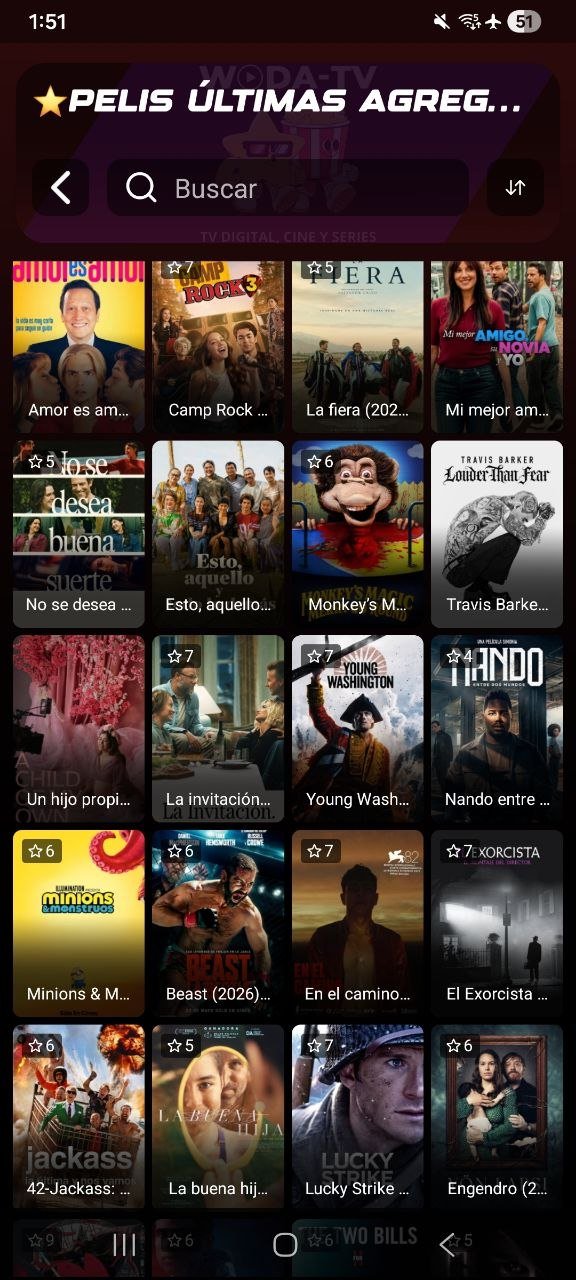
If yours is a television or a TV Box, there is a different guide.
Three things, nothing more. If you already have them, go to the steps.
It is on the store and installs like any other app. Everything happens on the phone itself, no computer and no cables.
The store that already comes with your phone or tablet, the one with the colourful triangle.
In the store search box, type:
NEXT+Reading this on the phone itself? Then you can skip the typing: this button opens the listing directly.
Press Install and wait a few seconds. The download is free. When it is done, choose Open.
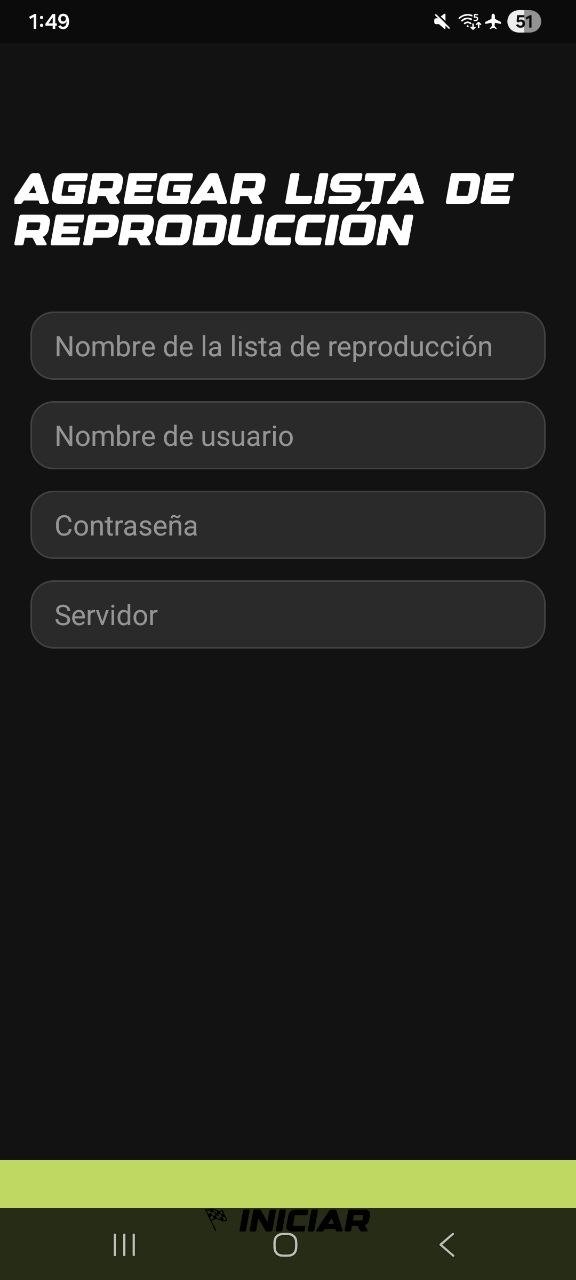
When it opens you get the ADD PLAYLIST screen, with four boxes. The first one, Playlist Name, is where you name the playlist, and that name has to be WODATV: type it exactly like that, one word, in capitals, with no spaces. Your username and password go underneath, and Server Number is 801. Every box is explained right below. You only do this the first time.
When you open the app you get a screen titled ADD PLAYLIST with four boxes. Fill them in like this, top to bottom.
✅ Confirm and that is it: you can start enjoying the service.
These two apps are the alternative to NEXT+ for watching in landscape, like on a television. They are not on the store: they download right here and install in about a minute.
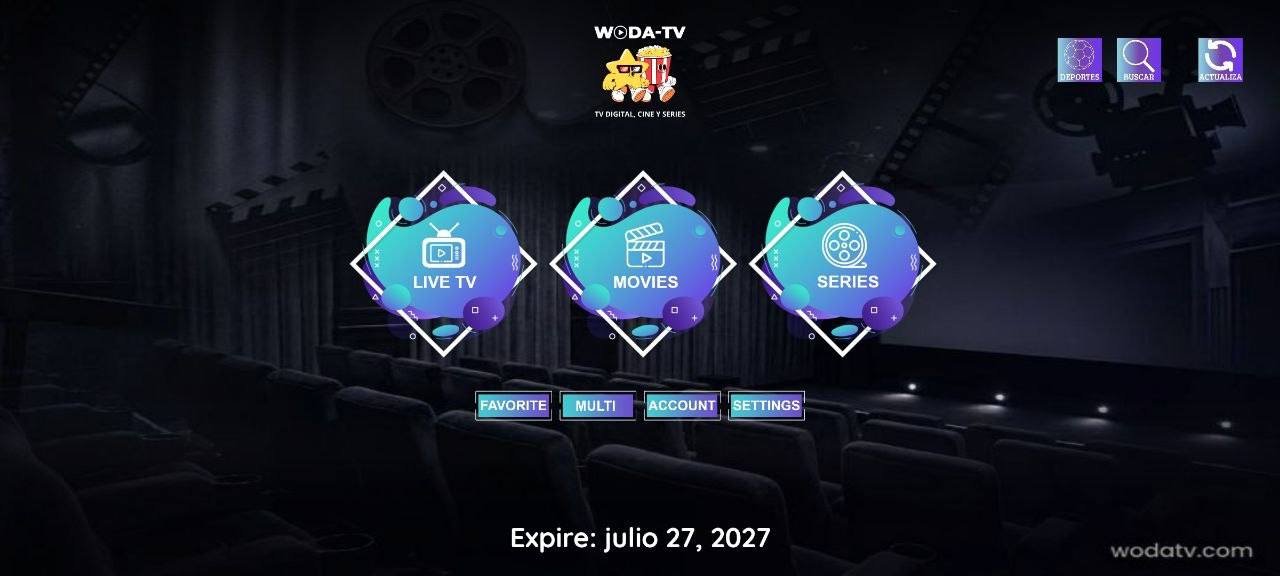
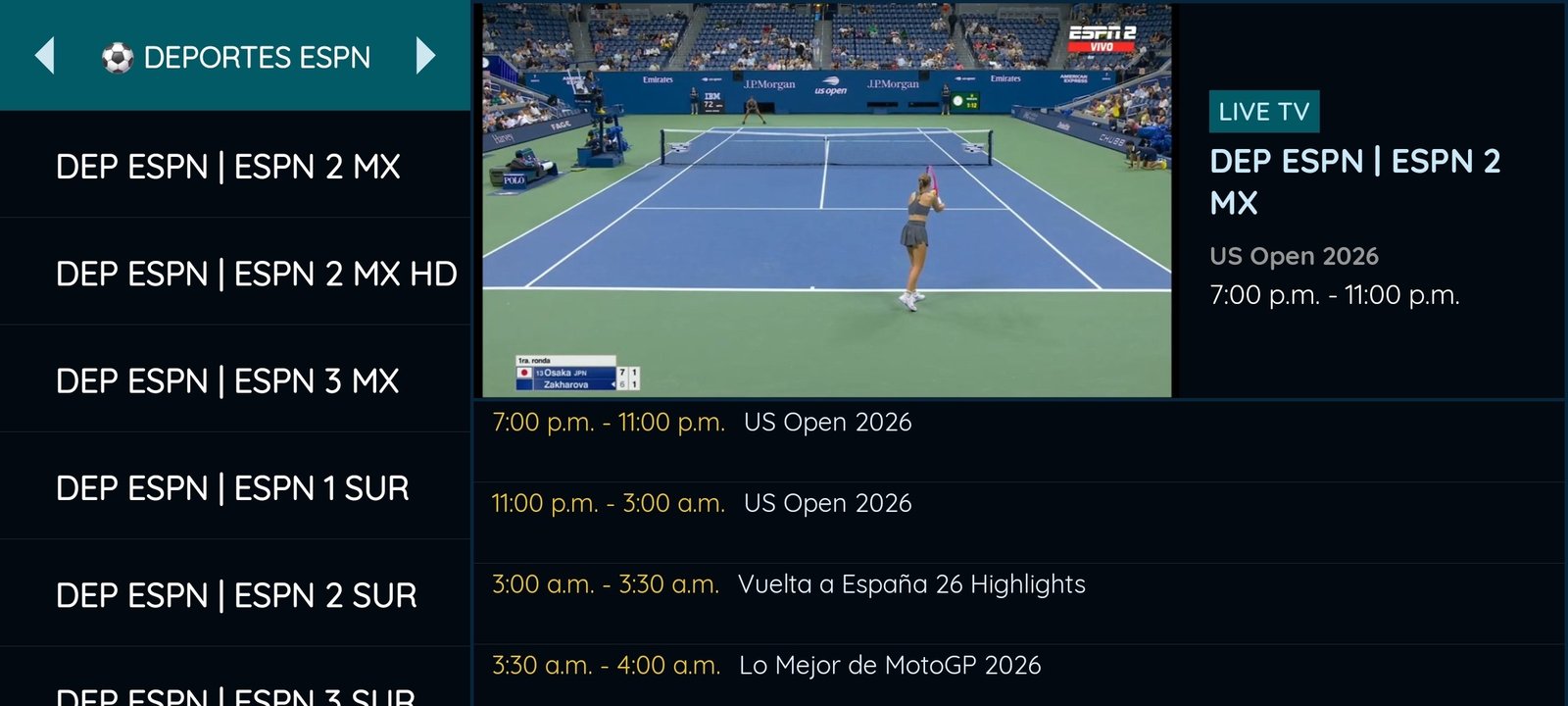
This is how it looks on the phone, held sideways
The most stable and the easiest to handle. Its search is excellent: it finds what you are after whether or not you type the accents.
When it opens: type your username and your password, and you are in.
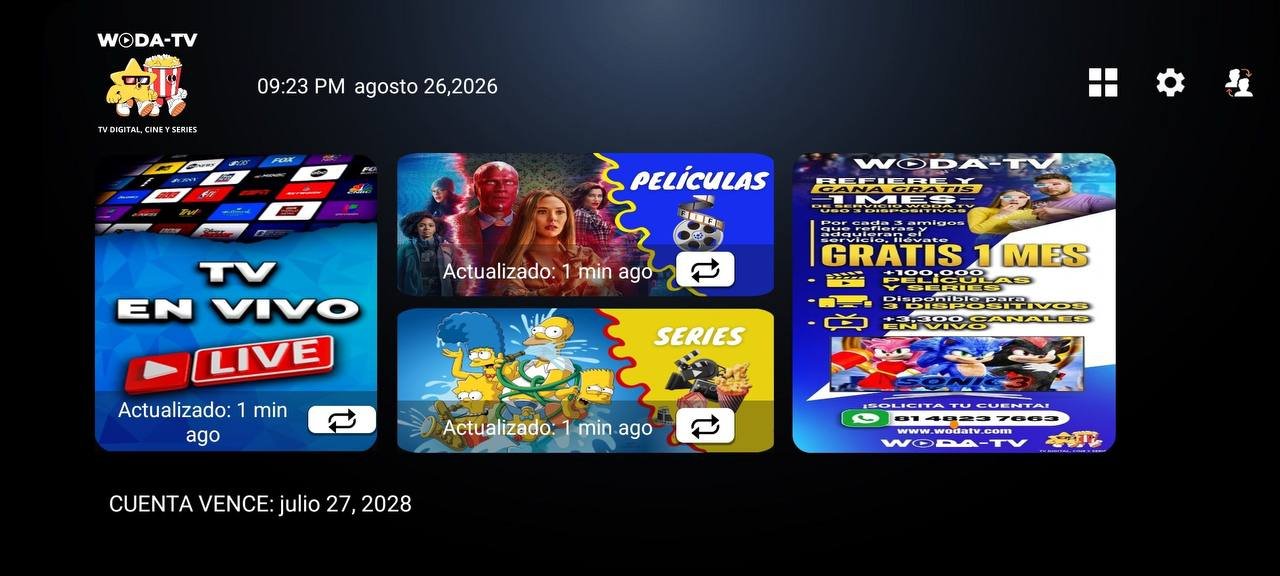
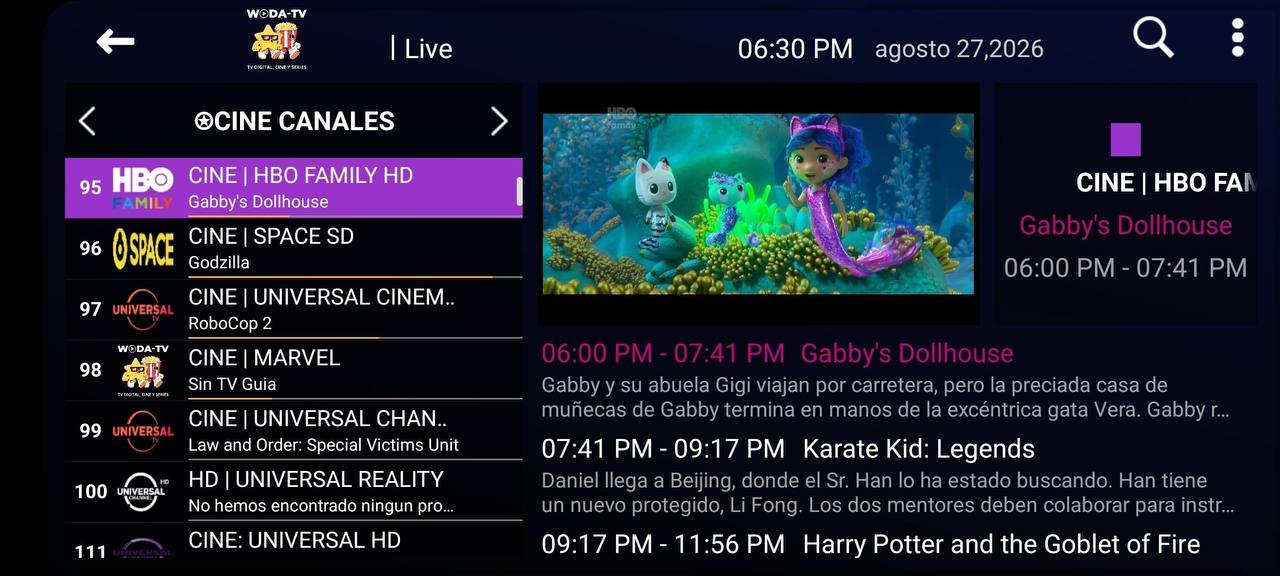
This is how it looks on the phone, held sideways
The twin of the Clásica. Very comfortable for live TV, and its search handles accents too.
When it opens: it first asks for a Name, and that is WODATV, one word, in capitals. Your username and password go underneath.
The file downloads on its own. If the browser asks whether you want to keep it, say yes: that is the app.
Open the downloaded file (it is in the download notification, or in your Downloads folder). Since it does not come from the store, Android asks once whether you allow installing apps from there: choose Allow, or Settings → turn the permission on → go back. Once only.
Press Install and then Open. Hold the phone sideways and sign in with the details on each card above.
Once inside the app, these are the tips to get the most out of it:
Everything you will find inside, once you sign in with your account.
Channels by category and a programme guide with times and descriptions. Full screen with one tap.
With poster, plot, genre, director, running time, rating and cast with photos. Series are sorted by season and episode.
It searches the whole catalogue, not just the folder you have open. And accents do not matter: type «raiz» and «Raíz» shows up.
The app remembers where you were in every movie or episode, and you can keep your favourite channels and titles within reach.
If a channel freezes, the app notices and tunes back in on its own. If the channel is still down, it tells you with a clear message.
Switch the app language from settings whenever you want. Texts and dates adapt on their own.
Real screenshots of the app running, no mock-ups.
The app working on a phone, so you can see how it handles.
The questions we get most, answered.
That is expected: on the store it does not go by that name. Search for NEXT+, exactly like that, with the + at the end.
The one called exactly NEXT+. If you are unsure, send us a photo of what the store shows you and we will tell you which one it is.
In Playlist Name type WODATV, and in Server Number type 801. They are the same for every customer. The only details that are yours are the username and the password.
It is nearly always the phone keyboard capitalising the first letter or autocorrecting the word. Type them slowly, with autocorrect off and no trailing spaces. If you are sure they are right, your account may have expired: message us and we will check.
The app retries by itself for a few seconds. If it stays the same, try another channel: if the rest work, the problem is that one channel. If they all fail, switch from wi-fi to mobile data: it is nearly always the connection.
No, Apple has a different app and its own guide: see the iPhone, iPad and Apple TV guide.
Message us on WhatsApp telling us which step you got stuck on and we will sort it out with you.
WhatsApp support